



Our app offers several convenient ways to log your meals. For each method, the app automatically calculates the calories, protein, fat, and carbohydrate values, and you can edit portion sizes as needed.
Not sure which method to choose? Here's a quick guide:
🏷️ Branded products — Barcode or Label Scanning
🍲 Home-cooked meals or dishes with several ingredients — AI Photo Recognition, AI Text Recognition, or a Custom Recipe
➕ A product that isn't in the database — New Food
🍽️ Restaurant meals — AI Photo Recognition or Quick Add
🏷️ Branded products: Barcode and Label Scanning
Tap the camera icon 📷 on the bottom-right and scan the product's Barcode, or use Label Scanning to capture the nutrition label.
With Label Scanning:
If the product isn't saved yet, the app opens the New Food screen with the recognized data. Before saving, you can edit:
calories, protein, fat, and carbs
serving size
If you've already saved this product as a custom food, the app uses your saved data.
✍️ Note: If a product you saved earlier has incorrect data, edit it in My Food, or delete it and log it again.
👉 You can find detailed instructions on deleting food in How to delete, move, or copy a food/meal?
🍲 Home-cooked meals and dishes with several ingredients
📸 AI Photo Recognition
Tap the camera icon 📷 on the bottom-right and take a photo of your meal. The AI will try to identify the food, estimate the portion size, and calculate the calories, protein, fat, and carbs. After scanning, you can:
edit the amount of each ingredient
edit the serving size
add missing ingredients or remove incorrect ones
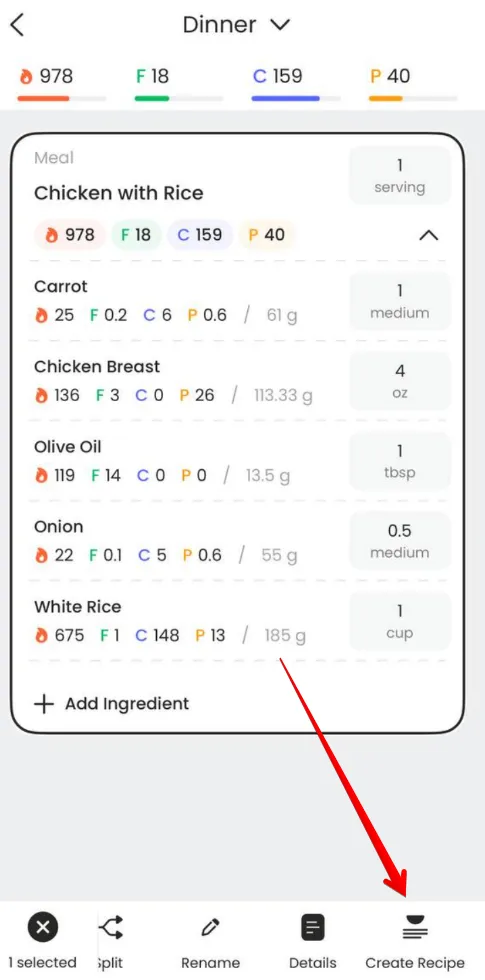
Once the entry is logged, you can also turn it into a recipe by tapping Create Recipe in the footer menu.
⭐ AI Text Recognition
Type a meal or product description in the search bar and tap the star icon ⭐. The AI will identify the ingredients and estimate the calories, protein, carbs, and fat. After that, you can:
edit the serving size
add missing ingredients or remove incorrect ones
Once the entry is logged, you can also turn it into a recipe by tapping Create Recipe in the footer menu:
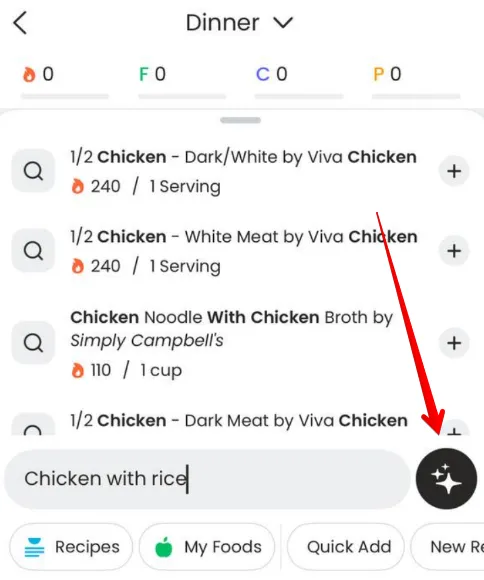
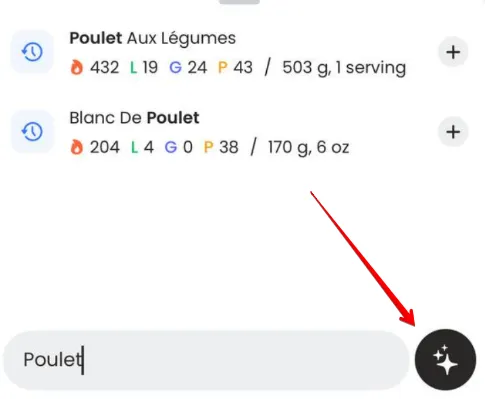
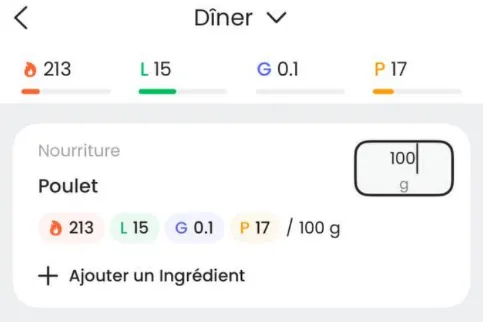
💡 Tip: AI Text Recognition is especially helpful for logging common foods such as milk, eggs, and vegetables, or when searching in a language other than English, for example, “chicken” in French:
📖 Custom Recipe
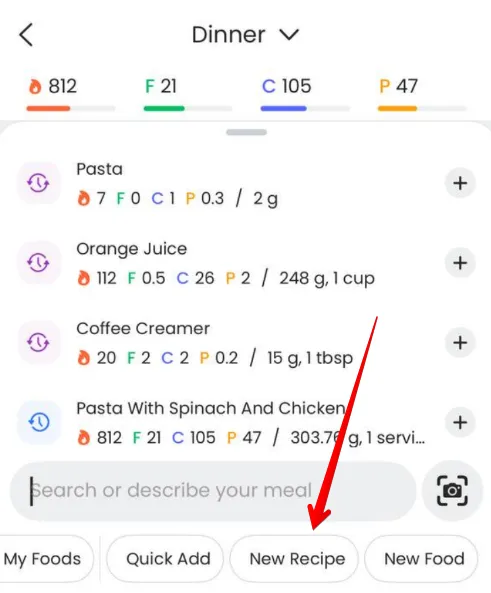
Tap New Recipe below the search bar to create your own recipe. Add the recipe name, ingredients and their quantities, and the serving size, then save it for easy reuse:
➕ A product that isn't in the database: New Food
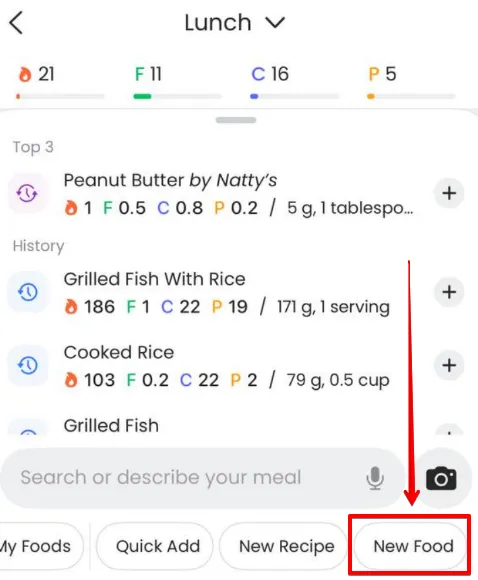
If a specific product isn't available in the database, tap New Food below the search bar to add it yourself. You can do it in two ways:
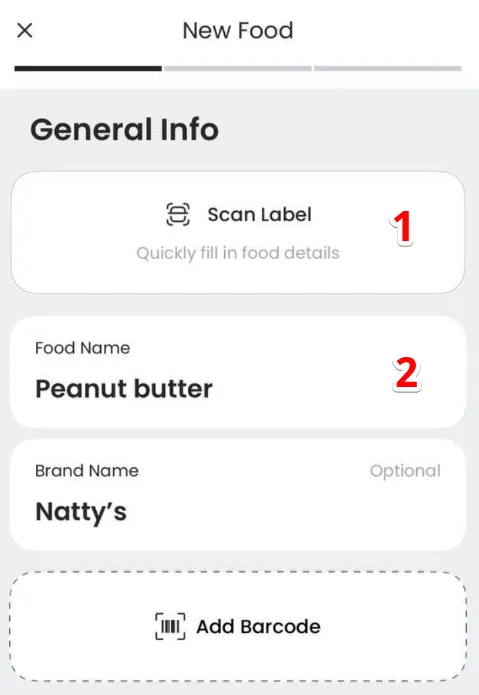
Enter the details manually: add the calories, protein, fat, carbs, and serving size.
Scan the nutrition label: before saving, you can review and edit:
calories, protein, fat, and carbs
serving size
Custom units
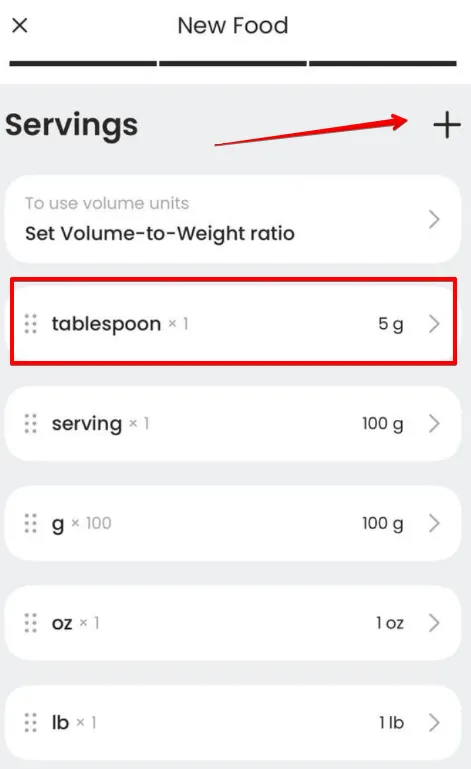
You can also create your own units (for example, a tablespoon or a slice) and set how much one unit equals in weight, for example 1 tablespoon = 15 g. To add a custom unit, tap the plus icon:
✍️ Note: Additional nutrition details, such as vitamins, minerals, and amino acids, can't be edited yet.
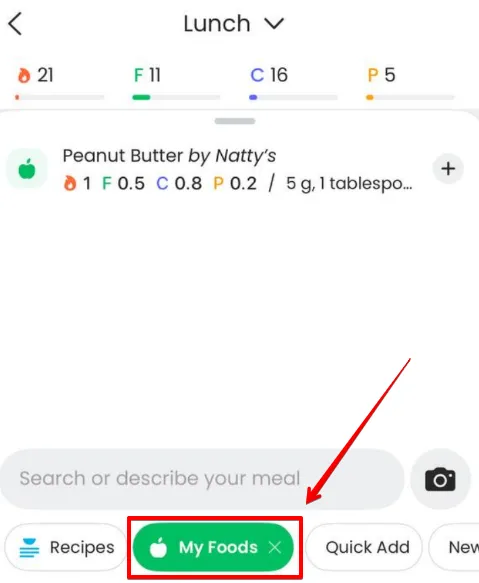
Once done, your custom food will be saved in My Food in the footer menu below the search bar, so you can quickly log it again later:
🍽️ Restaurant meals
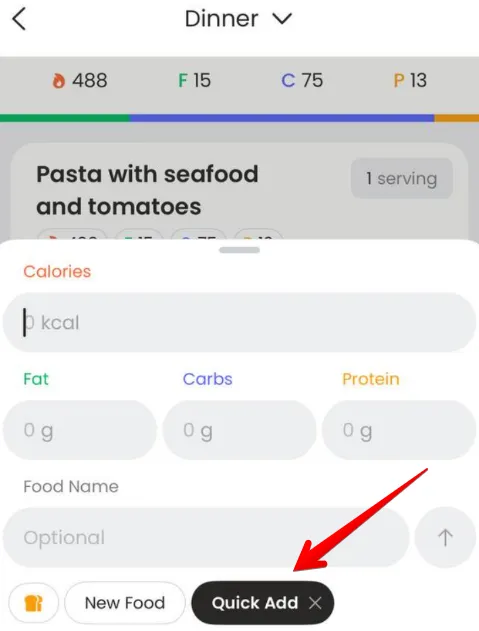
For restaurant meals, AI Photo Recognition or Quick Add work best, especially if you need a one-time entry and know the approximate number of calories:
With these options, you can choose the logging method that works best for each meal and keep your food tracking quick, flexible, and accurate.