



How to add a missing product🔍
If you’re unable to find a specific branded product in the database, or a barcode scan returns 0 calories or no nutrition data, it usually means that the product isn’t currently available in our database. In this case, you can add it using the New Food option, available below the search bar.
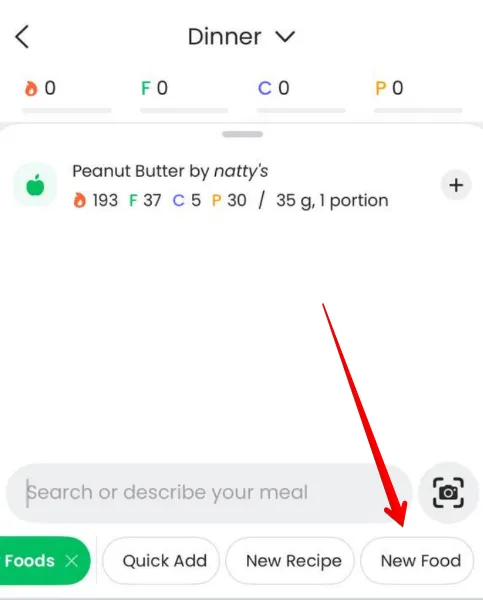
You can use it in two ways:
Enter the details manually. Add the food name, calories, protein, fat, and carbs, and set the serving size. You can also create your own serving units (for example, a tablespoon or a slice) and set how much one unit equals in weight, for example 1 tablespoon = 15 g. Please note: additional nutrition details such as vitamins, minerals, and amino acids can't be edited yet.
Scan the nutrition label. The app will recognize the nutrition data from the label. Before saving, you can review and edit:
calories, protein, fat, and carbs
serving size
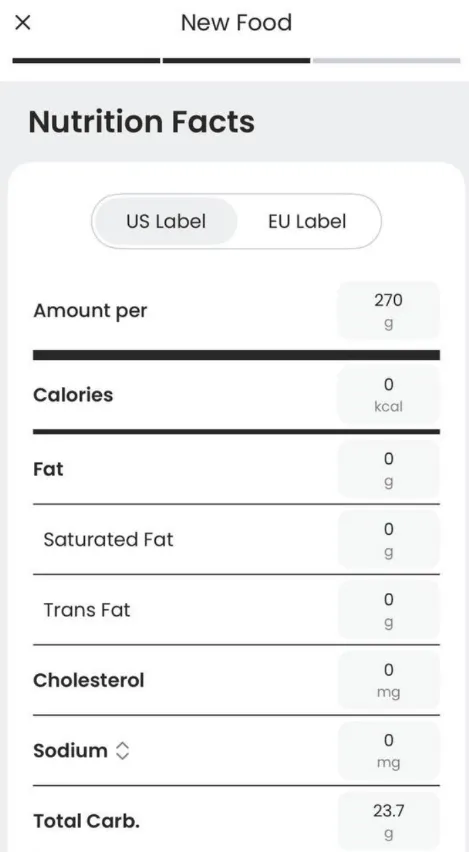
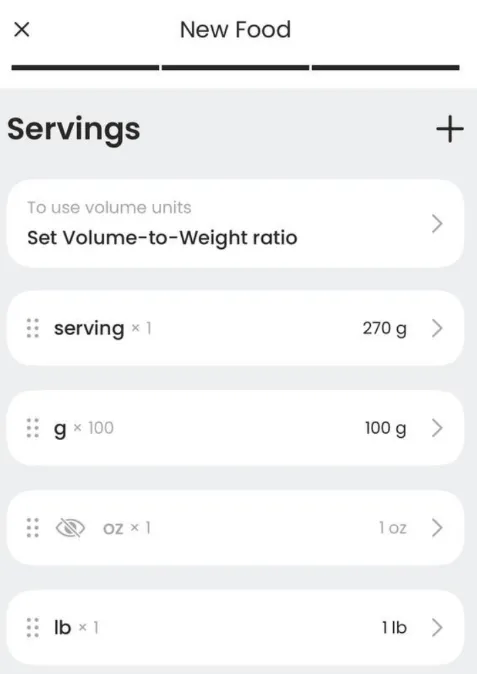
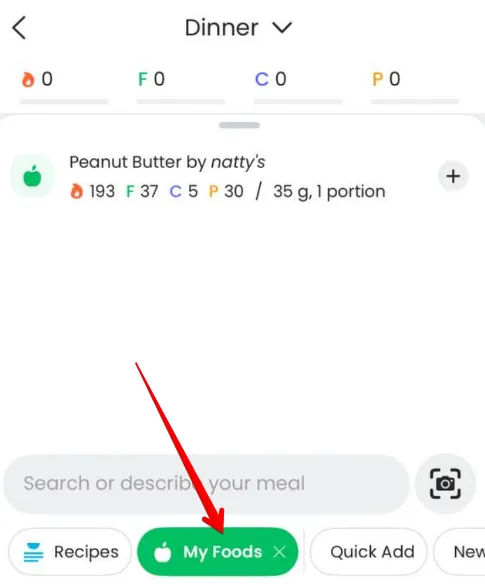
Once saved, the food appears in My Food in the footer menu below the search bar, so you can log it again in just a tap:
What happens when you scan a label
When you use Label Scanning, the app first checks whether you've already saved this product:
If it's a new product, the app opens the New Food screen with the recognized data. Here you can edit the calories, protein, fat, carbs, and serving size before saving. The product will then be added to My Food.
If you've already saved this product, the app uses the data from your saved custom food instead of creating a new one.
✍️ Note: If a product you saved earlier has incorrect nutrition data, scanning the label again won't fix it, because the app will keep using the saved version. To correct it, edit the product in My Food, or delete it and log it again.
You can find detailed instructions on deleting food in 👉 How to delete, move, or copy a food/meal?
By adding custom products, you also help improve and expand our database. We appreciate your contribution!
Using AI text recognition for faster logging💡
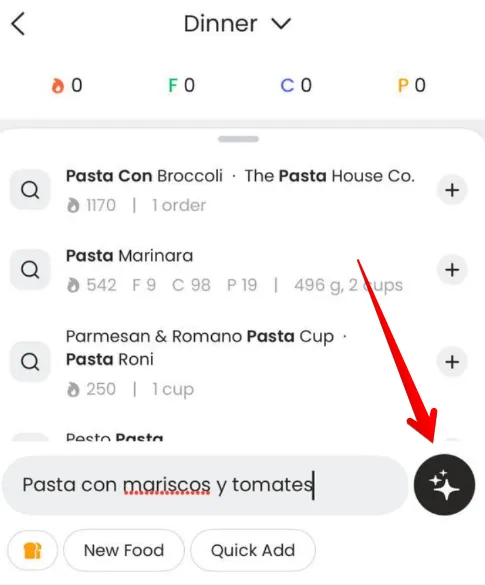
You can also use AI text recognition tool to search for products or meals. It works especially well for common products (like milk, eggs, vegetables), home-cooked meals, or when searching in a language other than English.
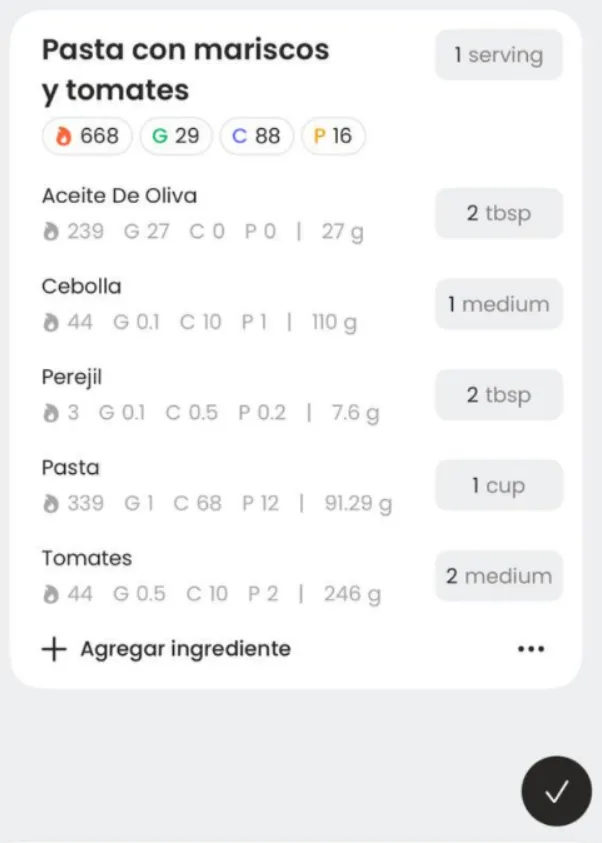
Simply type the product or meal into the search bar and tap the star icon ✨. The entry will be logged automatically with calculated calories, protein, carbohydrate, and fat content, and you can edit the serving size as needed:
Then you can convert this meal into a recipe by tapping the "Create Recipe" in the footer menu:
💡 Tip: Keep in mind that the AI may sometimes have difficulty recognizing very specific wording, especially when a dish name doesn't clearly describe the ingredients. For better results, try using simple and clear prompts that describe the main ingredients and preparation instead of a more unusual dish name. If the result isn't quite right, you can always edit the entry manually or choose a more suitable option from the database.
AI photo recognition and data accuracy 📸
When you take a photo of your meal, the AI tries to identify the food, estimate the portion size, and calculate the calories, protein, fat, and carbs. After that, you can edit:
the amount of each ingredient
the serving size
AI photo food recognition may sometimes struggle with:
Photo quality — poor lighting, blurry images, unusual angles, or food that is partly hidden
Portion size — especially when the serving is difficult to see or estimate from the photo
Mixed or complex meals — dishes with multiple ingredients, sauces, fillings, or toppings
Similar-looking foods — for example, different types or varieties of similar products
Preparation methods — fried, baked, grilled, or otherwise prepared foods may look similar but have different nutritional values
Regional or less common foods — unfamiliar local dishes, brands, or product variations may be harder to recognize accurately
Hidden ingredients — oils, dressings, sauces, or other ingredients that aren't visible in the photo
If you notice missing macros or a significant difference in calories, the AI may not have been able to confidently identify the food or estimate its portion. For more accurate results, make sure the whole meal is visible in the photo, including all ingredients and toppings, and take the photo in good lighting from a clear angle. You can always edit the ingredients or serving size manually if the suggested result isn't quite right.
With these tools and tips, logging your food becomes easier, more flexible, and more accurate over time. Even small adjustments in how you add entries can go a long way in keeping your nutrition data clear, consistent, and reliable!